Defining Deposit/Cancellation Policies
The Deposit Policy and Cancellation Policy menus allow users to define new policies for deposits and cancellations.
The procedure for defining a policy is the same for both deposits and cancellations. Perform the following steps to define a new deposit policy:
Navigate to Settings à System Setup à Deposit Policy.
Click New Deposit Policy. The New Deposit Policy screen appears.
Refer to the following table and fill in the details.
|
Field |
Description |
|---|---|
|
Effective From |
Select a preferred date from when the policies must take effect for bookings in the system. |
|
Expires On |
|
|
Filter by Building |
Select the buildings to which the policy must be applied. |
|
Room Type |
Select the room types to which the policy must be applied. |
|
Policy Type |
Select the Tariff or Package option based on whether the policy must be created for tariffs or packages in the system. On selecting an option, the available tariffs or packages in the system will be displayed in the grid and the user can select the preferred records. |
|
Policy Code |
A unique code for the deposit policy. It can contain up to 6 alphanumeric characters. |
|
Policy Name |
The name of the deposit policy created. It can contain up to 50 characters. |
|
Policy Description |
The terms and conditions for the deposit policy. |
|
Active |
When enabled, indicates that the policy is active. |
|
Allowed Reservation Type(s) |
Select a reservation type for which the policy must be applicable. |
|
Include Tax |
When enabled, the taxes associated to the room type will also be included in the calculation of the due deposit. For example, if $100 is the room charge and $10 is the tax configured for the room type, then if the deposit amount to be charged is 10%, then a total of 11$ (10 percentage of (100$+10$)) will be charged to the guest as a deposit. |
|
Include Resort Fee |
When enabled, the resort fee associated to the room type will be included in the calculation of the due deposit. This flag will be automatically enabled if the Deposit Required to Include Resort Fees in the Stay Defaults screen (Settings à System Setup à Stay Defaults) is enabled. For example, if $100 is the room charge and $50 is the resort fee configured for the room type, then if the deposit amount to be charged is 10%, then a total of 15$ (10 percentage of (100$+50$)) will be charged to the guest as a deposit. |
|
Include Service Charge |
When enabled, any service charges associated to the reservation will be included in the calculation of the due deposit. For example, if $100 is the room charge and $50 is the service charge associated to the reservation, then if the deposit amount to be charged is 10%, then a total of 15$ (10 percentage of (100$+50$)) will be charged to the guest as a deposit. |
|
Schedule |
|
|
Schedule Type |
Select an option to set if the deposit amount must be collected before the arrival of the guest, on arrival of the guest, or at the time of booking of the reservation. |
|
Days/Nights |
The number of days/nights before the arrival date by which the deposit amount must be paid. This field is enabled only if the schedule type is selected as prior to arrival. |
|
Charge Type |
The type in which the deposit should be charged. The available options are,
|
|
Charge |
The number of nights, percentage, or flat fee that must be charged as deposit. This field is not displayed if the charge type is selected as Entire Stay. |
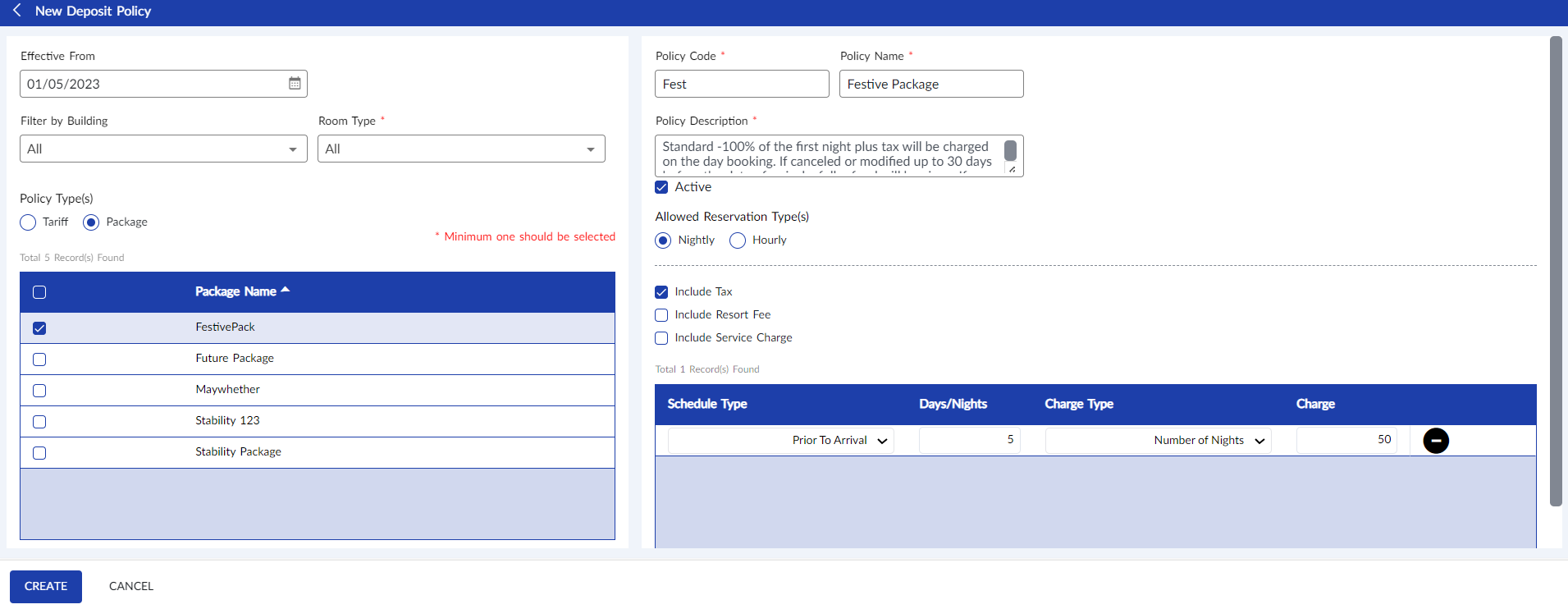
Click Create. The deposit policy is created successfully.
Users can add more than one schedule for a deposit by clicking the Add Schedule option in the grid.
Users can also perform the following actions in the Deposit Policy screen:
-
Modify a deposit policy using the Edit icon.
-
Delete a deposit policy using the Delete icon. A deposit policy cannot be deleted when in use.
-
Search for a deposit policy using the policy code or name.